
An address. A price. The reply you send to every new client. You need them many times a day, and each time you look for them or type them again. I built Sticky Notes App, a free Chrome extension, so these small facts sit next to whatever page you’re working on. You can try it today: install it and move in the three things you type again most often.
Where they live now, and what each place costs
I noticed that people keep notes like these in different places, but use them in the browser. The email, the form, the chat with a client: that’s where the address has to go. So every place you keep it costs a few steps, every time.
A notes app. Switch to the app. Find the note. Copy. Switch back to the page. Paste.
A document in a tab. Find the tab, or open the document. Search for the line. Copy. Switch back.
A message to yourself. Open the messenger. Find your own chat. Scroll. Copy. Switch back.
Each step is small. For one line, together they feel like too much. So people type the address again from memory, or keep a tab open “just in case”.
What I built
I’m not a programmer. I built Sticky Notes App with AI, for exactly these notes: the ones you don’t want to open a text editor for.
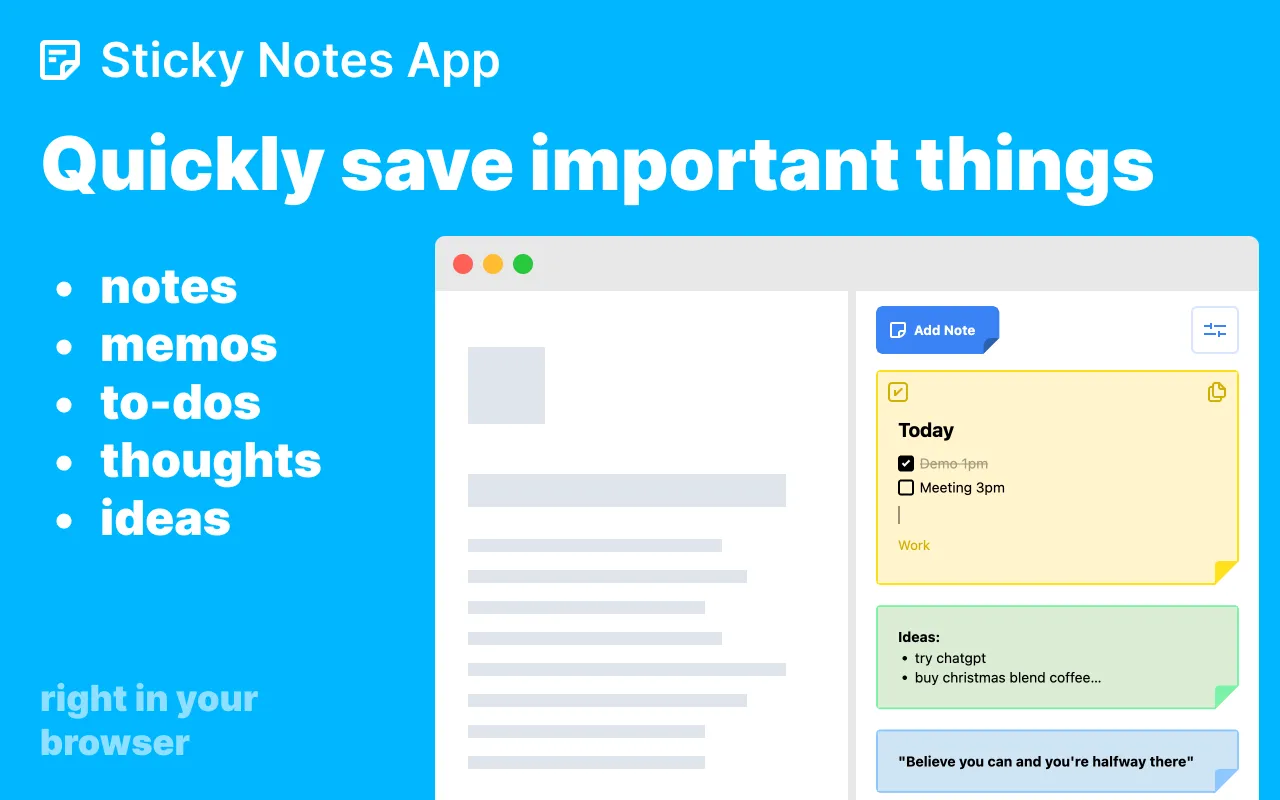
It’s a panel on the side of the browser window. It stays there while you move between sites, so your notes are always next to the page you’re working on. Notes are saved in your browser on your computer. There is no account to create.
What a workday looks like with it
Saving. Select text on any page, right-click, and pick “Save selection to Sticky Notes App”. You never leave the page. For something that isn’t on a page, open the panel and type a new note.
Finding. Give a note one or more tags: clients, prices, replies. Click a tag to see only its notes, or click Search and type a word.
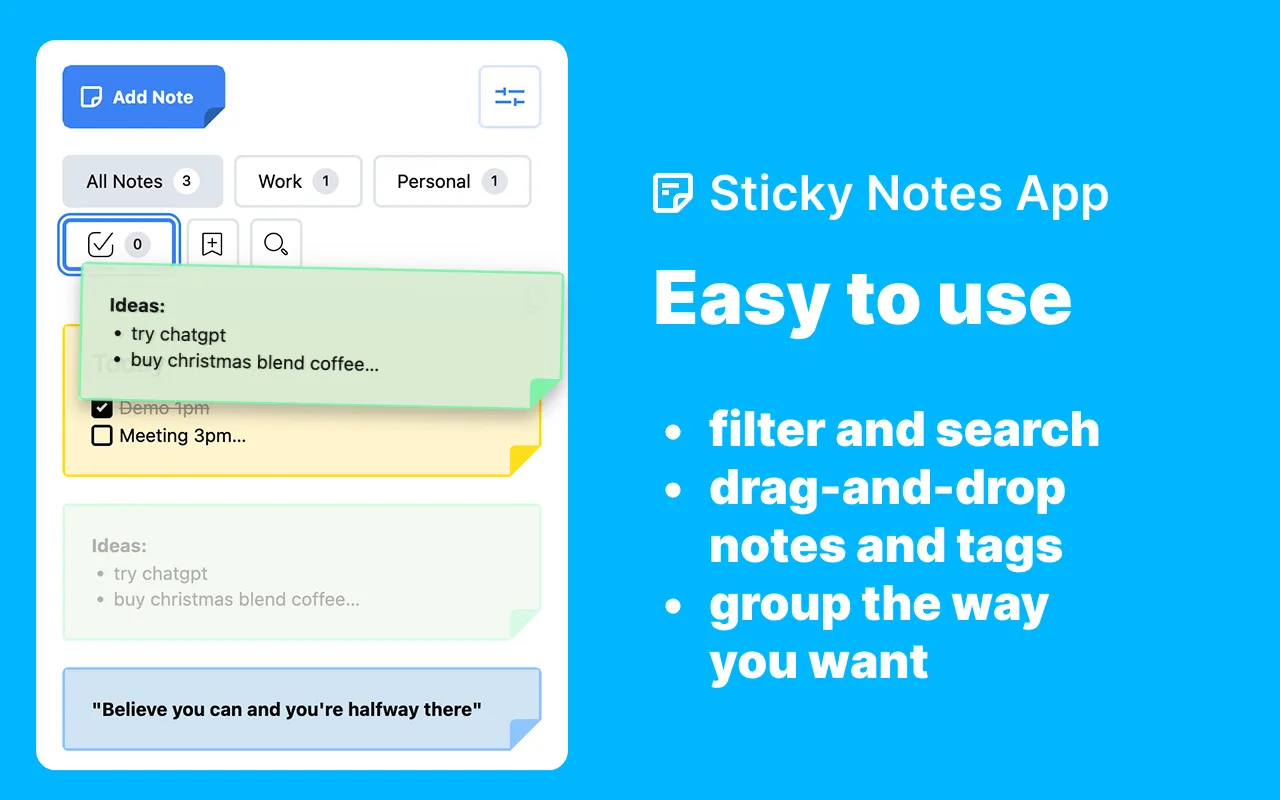
Using. Copy a note with one click, and paste it into the email, the form or the chat. The panel stays open, so the next one is right there too.
What it won’t do
- Long texts. A contract, a report, meeting notes: use a real editor. This is for lines, not pages.
- Other devices. Notes live only in this browser, on this computer. There’s no sync. On another computer, the notes you saved here aren’t there.
Who uses it
Sticky Notes App has 1,000 users and an average of 5.0 from 15 ratings in the Chrome Web Store. One review says: “It helps keep me organized while I’m at work.”
Try it today
- Install Sticky Notes App from the Chrome Web Store. It’s free, with no account. Click the puzzle piece next to the address bar and pin its icon.
- Click the icon to open the panel.
- Think of the three things you typed again or looked up most often this week. For each one, click Add Note, type it, and type
workin its Add tags field to tag it.- Tomorrow, when you need one, copy it from the panel instead of typing it. Then notice by Friday whether you still type those three things, or keep a tab open for them.