
I still swear at AI. I just press one key before I send it. That key belongs to a small Mac app I made: it turns a rough message into a clear request, and in my experience the answers got better. If you have a Mac, you can try it on your next message today.
The message you send when you’re tired
You know this one. The AI broke the same thing again, and you type:
why is the login button STILL broken?? i told you 3 times, on my phone it does NOTHING. and stop changing the colors every time, wtf
Or you’re too lazy to explain properly, so you send half a thought and hope it guesses.
In my experience, that costs you the answer. The AI’s attention goes to the wrong place: the anger, the capitals, the noise. The task gets less of it.
The usual fixes take effort. You can calm down and rewrite it yourself. Or you copy it into another chat, ask “rewrite this”, wait, and copy it back.
One key, right where you type
QuickPrompt is a small menu bar app for Mac. You select text in any app, press a shortcut, and the result either replaces the text or lands on your clipboard.
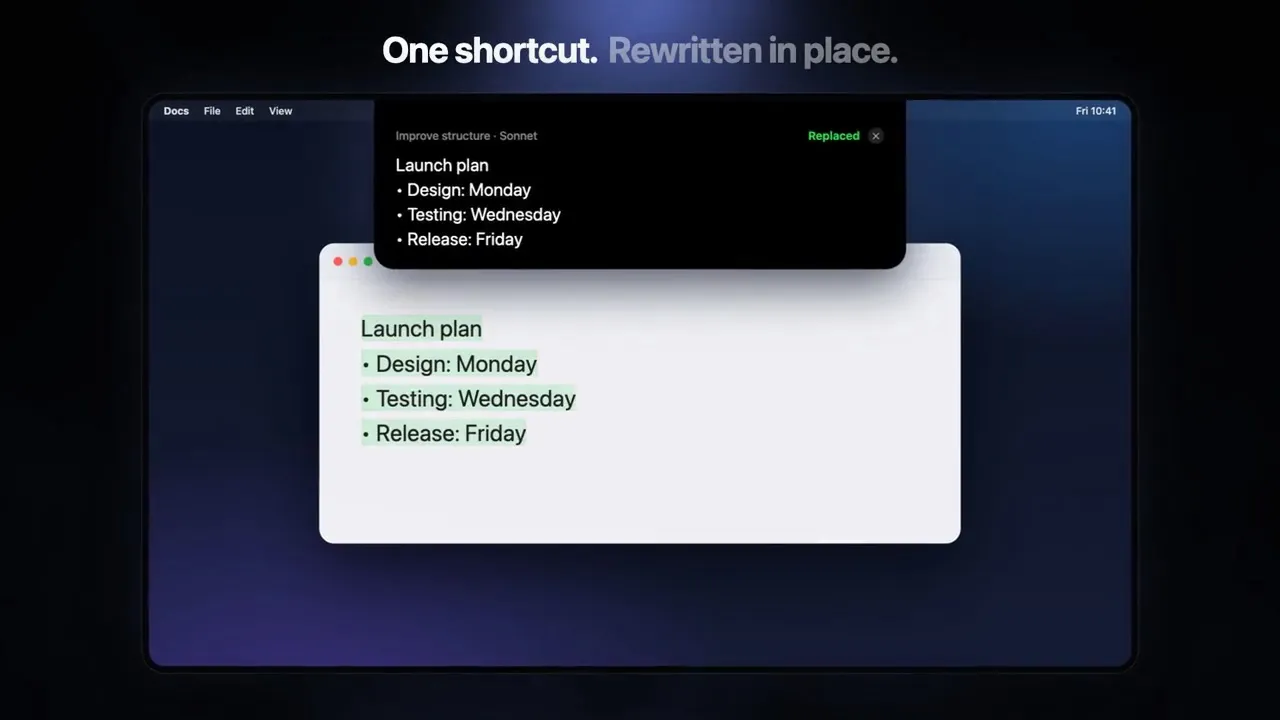
For a prompt, the key is ⌥⌘2, “Improve structure”. I ran the message above through it. This came back, ready to send:
Why is the login button still broken? I’ve told you three times that it does nothing on my phone. Also, please stop changing the colors every time.
The instruction behind that key tells the AI to remove profanity, insults and shouting but keep the request. It must not invent goals, context or steps. A long, messy draft gets organized: separate requests become a list, and short headings appear when there are several topics. A draft that is already clear, well organized and free of mistakes comes back as it is.
Translation works the same way
The other use is just as handy. Select any text, press ⇧⌘C, and the translation appears at the top of the screen, already copied. A long answer in English, a colleague’s message, your own paragraph. No trip to ChatGPT and back.
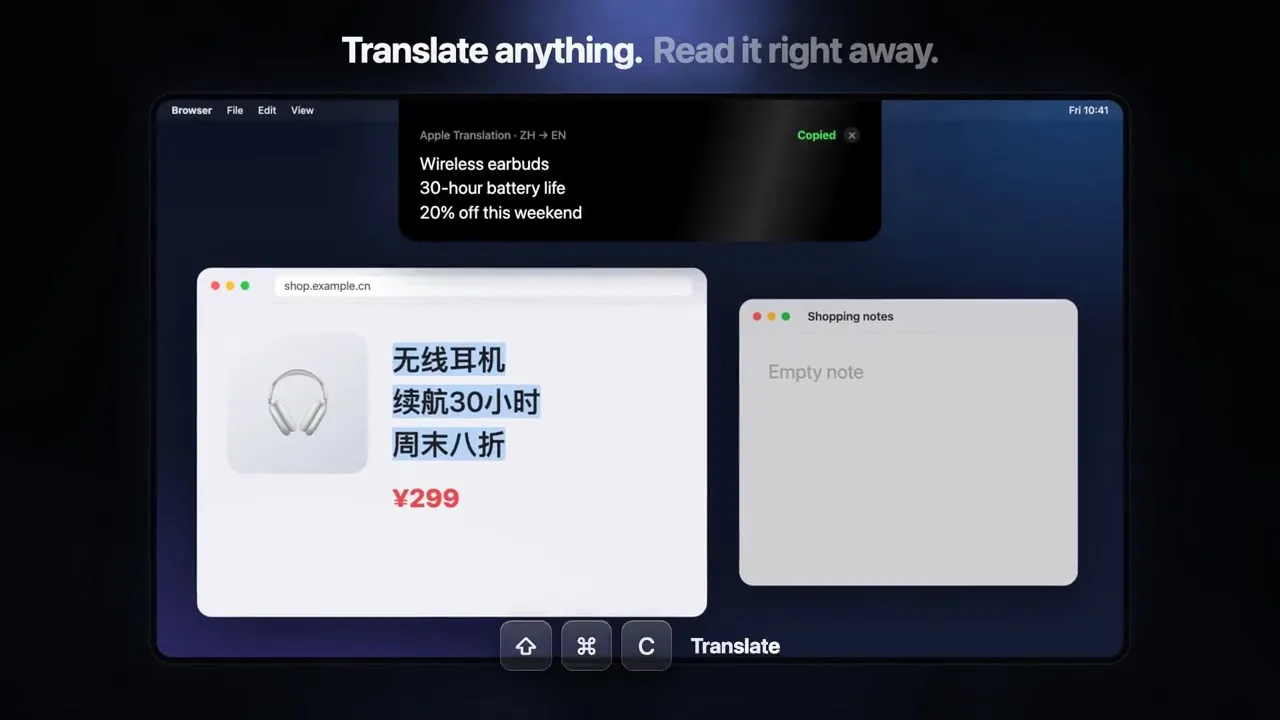
It translates into your language. If the text is already in your language, it goes into English. This key uses Apple’s translation on your Mac, so the text doesn’t leave it.
For any other language, open Settings, add your own action with a one-line instruction like “Translate into Spanish”, and give it a shortcut. The same goes for anything else you do with text again and again: you can write your own instruction and put it on a key.
What it runs on, and what it won’t fix
The AI actions run through Claude Code or Codex on your Mac, signed in with the Claude or ChatGPT subscription you already have. No API key and no new account. The app is free and open source. Your text goes to Anthropic or OpenAI, the same as when you type into their chat.
It won’t make the AI smarter, and it won’t guess what you meant. A vague message comes back as a clearer vague message. It also uses your clipboard, so whatever you copied before gets replaced. And it needs a Mac with macOS 26 or later.
Try it today
- First, if you don’t have it yet, install Claude Code and sign in with your Claude subscription. If you use ChatGPT instead, install Codex and sign in with your ChatGPT plan. Do this before step 2: QuickPrompt picks the AI it finds at its first start.
- Open Terminal and paste this line. It installs QuickPrompt from GitHub:
curl -fsSL https://raw.githubusercontent.com/maximnikmazin/QuickPrompt/main/install.sh | zsh- When macOS asks, click Open System Settings and switch QuickPrompt on under Accessibility. It needs this to copy your selection and paste the result.
- For translation, download the languages you translate from and into in System Settings → General → Language & Region → Translation Languages.
- Write your next message to AI the way you normally would. Select it and press ⌥⌘2.
Then notice how often you would have sent the first version.